 Anerty's Lair - DriveSort


DriveSort v1.242
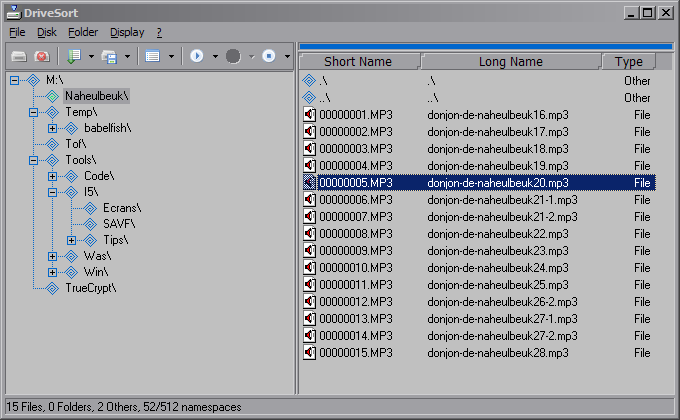 DriveSort sorts the directory tables of a volume formatted in FAT12, FAT16 or FAT32.
This sort orders the files on the disk according to a customizable order.
DriveSort sorts the directory tables of a volume formatted in FAT12, FAT16 or FAT32.
This sort orders the files on the disk according to a customizable order.Recent operating systems sort the files before showing them to the user, either by name, by size or by whatever the user choose. However, it is not always the case in embedded OSes on small portable devices like MP3 players. On these devices the lack of resources (CPU, memory) can lead their developers to make it display or play the files in the order in which they are on the disk.
This order depends mostly of the order in which they were added to the disk, which is not convenient for the user. DriveSort can change this order to help such devices to play or view their files in the order you want, by putting them on the disk in a customizable order.
DriveSort sorts files and folders according to various options available in the popup menu next to the sort icon. The order can then be saved to disk either folder by folder, or for all sub-folders.
- The comparison base:
- "Short name": sorts the files and directories according to the alphabetic order of their Short File Names [Default].
- ( A file or directory on a FAT volume always has a short file name, which is the old MS-DOS 8.3 name format. It means that the name part of a filename must have at most eight characters, and its extension at most three. A file or dir can also have a long file name, which can be a bit longer than 250 characters, and supports Unicode characters. When a file name contains mixed case, or has one part that doesn't fit in the 8.3 convention, the file has both short and long filenames. )
- "Long Name": sorts the files and directories according to the alphabetic order of their Long File Names.
- "Logical Long Name": sorts the files and directories according to the alphabetic order of their Long File Names in a logical manner, that is by taking into account the numbers present in the names while sorting them.
- "File Size": sorts the files and folders according to their size on disk or for folders according to the sum of the sizes of all files and folders in the folder.
- "Creation Date": sorts the files and folders according to their creation date and time.
- "Access Date": sorts the files and folders according to their last access date (no time for this date in the FAT format).
- "Update Date": sorts the files and folders according to their last modification date and time.
- The sort direction: "Ascending" [Default] (aaaa.txt before aaab.txt) or "Descending" (aaab.txt before aaaa.txt)
- The position of folders relative to the files:
- "Before the files": Groups the folders together at the top of the name table, and sorts the files separately. [Default]
- "After the files": Groups the folders after the files, and sorts the files separately.
- "Mixed with files": No difference between files and folders, they are all sorted together.
- The recursive mode which sorts a folder and all its sub-folders by checking "Subdirectories".
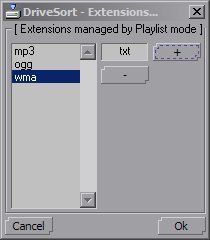
DriveSort also features a manual ordering mode for files: the "playlist" mode, in which you can drag the files in the list in the order you want. This mode is only available on the files having a long file name, because it alters the content of the short file name of the ordered files. If it was used on a file having only a short file name, the name would be lost. The short file name is altered to become something like "XXXXXXXX.EXT", where XXXXXXXX is the file's playlist number, and EXT is the file original extension. The long file name of the files is not modified, and the files are automatically ordered on the disk using "Short Name" comparison. This is particularly useful for multimedia players which play the songs using the short file name alphabetic order, and display them using their long file names, such as the I-Bead, the Sony K750i, some devices for GBA/NDS... The playlist mode is initially able to move .MP3, .OGG and .WMA files around, to avoid files that are not really part of a playlist, like system files. If you want to add other extensions to these, use the Extensions... menu in the playlist menu, or add them to the RecognizedExtensions option of the DriveSort.ini settings file.
DriveSort depends on the latest x86 Visual C++ redistributable components to run. When these are missing it will show an error message mentioning missing DLLs such as mfc140u.dll, vcruntime140.dll or some others with names like api-ms-win-crt-*.dll. These are available for free from Microsoft and compatible with recent Windows versions (Windows XP to Windows 10). On the most recent Windows versions these components are usually already deployed and kept up to date by Windows Update. If you need to install them, you'll find the official installer for these components here: [ vc_redist.x86.exe ] or in the latest supported Visual C downloads. NOTE: You'll need the x86 components even if you have a 64bit edition of Windows because DriveSort is compiled as a 32bit executable for compatibility reasons.
DriveSort works directly with the basic structures of the file-system, so be careful when using it, and backup anything important before. DriveSort can create a full backup of a disk or a partition from the disk selection dialog context menu.
Use this program at your own risks.
Screenshots: 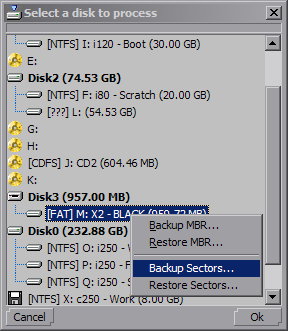
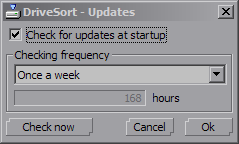
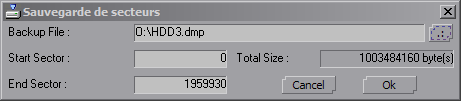
Latest news: [ v1.242 ] [ v1.240 ] [ v1.231 ] [ v1.230 ] [ v1.225 ] [ Linux & Wine ] [ v1.223 ] [ v1.222 ]
Downloads: [ DriveSort (EN, Windows)  ]
]